Upload authorized photos, choose Classic duet and the Hotel Lobby stage, and optionally add names, an occasion and one personal detail. Select your format and available settings, sign in and review the credit quote before Generate video. Watch the completed clip with sound and download its MP4 from Videos.
Updated
Decide what you want the finished video to do
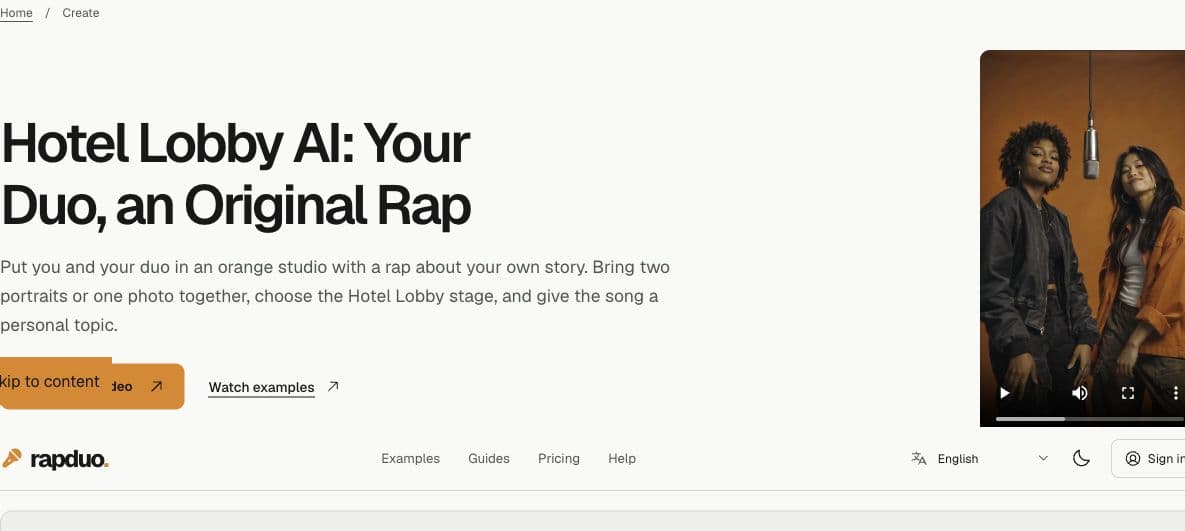
The familiar orange stage comes from Quavo and Takeoff's A COLORS SHOW performance. RapDuo makes a new performance with generated motion, beat and vocals. The stage gives the recognizable setting; a birthday, friendly battle or pet effect gives the performance a different purpose. You do not need to write the scene instructions.
RapDuo does not include the original song, import its performance video or guarantee its exact moves. Inspect the public examples and the detailed friends case before buying credits. Personalized video generation is paid, with no personalized preview before generation. A published example demonstrates one result, not a success rate.
Make a Hotel Lobby video from your phone photos
Open RapDuo in your mobile browser; no separate app is needed. You and your friend can use photos taken in different places. Keep the original photos handy so you can check the finished faces against them.
Add your photos from the phone picker
Choose Two photos for a portrait of each person, or One photo for a picture of you together. Check both faces in the previews. If your phone photo is HEIC, export a JPG or PNG before uploading.
Select the orange-stage duet
Choose Classic duet and Hotel Lobby. Leave personal details blank for a general rap, or add a name and one occasion. Choose 9:16 for a vertical post, then review the duration, quality and credit quote.
Generate, listen and save the MP4
Sign in and confirm Generate video once. Follow the same task in Videos. When it is ready, tap Play and unmute, then download the MP4 and play the saved file before sending it to your friend.
1. Prepare and upload the right photos
Choose your pair
Use two people, two pets, or a person with a pet whose images you may use. Two photos accepts one clear subject per file. One photo accepts both subjects clearly visible together. Avoid an extra face or an animal hidden behind an arm.
Check the files and previews
Use JPG, PNG or WebP up to 10 MB each. Both dimensions must be 300 to 6000 pixels, with a width-to-height ratio from 0.4 to 2.5. Check the uploaded previews for the right subjects, readable faces and sufficient detail. Change a weak photo before reviewing the paid request.
Confirm permission
Use the permission checkbox only when you may use both subjects. Selecting a photo previews it in your browser. Generation submits the required images for AI processing. The swap button changes the reference order, without guaranteeing a fixed screen side or who performs first.
2. Choose the performance, stage and personal details
Start with Classic duet for a shared original performance. Choose Friendly rap battle for playful rivalry, Birthday shout-out for a recipient, Pet duet for animal personality, Couple duet for an anniversary, or Celebration duet for a shared achievement. The effects guide explains these choices and opens the selected effect in the studio.
Hotel Lobby selects the orange studio. Luxury Lobby, Studio Booth and Street Cypher offer different settings. Add only the personal information you want the short rap to use: the relationship, occasion, names and one recognizable detail. The optional field allows up to 240 characters. Leave it blank for a general performance; full scene instructions and exact lyric scripts are unnecessary.
| Choice | What it controls |
|---|---|
| Performance | The kind of duet, such as a birthday celebration or friendly rivalry |
| Stage | The visual setting |
| Personal details | Guidance for new lyrics, without locking every word |
| Format | 9:16 vertical, 1:1 square or 16:9 landscape |
| Length and quality | The requested output settings and generation cost |
3. Set the format and check the actual price
Length options are 5, 8, 10, 12 and 15 seconds. A short clip suits a simple greeting; more time gives an occasion room to develop, but cannot guarantee a complete story or correct name. Standard, Fast and Pro currently offer 720p. Ultra offers 480p and 720p. 1080p is Coming soon. Model labels do not establish measured speed or likeness rankings.
Sign in and select Review generation. Check the chosen performance, settings, required credits and available balance. The Single pack costs $9.99 for 10 credits, covering one Standard 720p 12-second generation or two Standard 720p 5-second generations. Pro 720p at 12 seconds costs 20 credits, so that same pack is insufficient. Buying credits alone does not start a render.
Pack credits never expire; subscription credits expire at the end of the paid period. Recheck the quote whenever you change a setting. The credit balance limits what you can submit; it does not guarantee that the first creative result will suit your gift or post.
| Available configuration | Generation credits |
|---|---|
| Standard, 720p, 5 seconds | 5 |
| Standard, 720p, 8 seconds | 7 |
| Standard, 720p, 12 seconds | 10 |
| Pro, 720p, 12 seconds | 20 |
| Ultra, 480p, 12 seconds | 17 |
4. Submit once and follow the same task
Select Generate video once. You can leave the creator and follow Videos in the same account. Queue and saving time vary; RapDuo does not guarantee a render deadline or send a completion email.
If submission is being confirmed, check the existing task and keep the same photos and settings. A connection interruption can occur after acceptance. Creating another task may create another paid generation. A confirmed failed render returns generation credits; a slow or unconfirmed task is not yet a confirmed failure.
5. Review the file before sending it
- Watch the opening, middle and ending. Compare both subjects with their photos and check pet markings, hands and visibility throughout the clip.
- Listen for the recipient names, occasion, unwanted wording and language. The selected effect guides a new performance without guaranteeing exact lyrics, voices or choreography.
- Download MP4 from the result or Videos, then test the saved file with sound. If only browser playback is silent, troubleshoot playback before spending credits on another render.
- Keep a local copy. Check the audio and AI disclosure rules for your publishing platform. Adding a different soundtrack later does not change the mouth movements already in the video.
See and hear a finished Hotel Lobby duet
Play this existing friends example with sound before deciding whether to make your own. It is an 8-second vertical 720p video with original generated vocals and a beat. Both characters are fictional adults, and the joint reference already shows them on the orange stage.
Watch each face as the performers move and listen to the words. The detailed friends case linked below shows the actual reference, settings and observed output.
Questions before you create
Do I need a full prompt or reference video?
No. Choose the performance and stage, upload photos and optionally add personal details. RapDuo applies the performance directions automatically and has no custom reference-video or soundtrack upload.
Does the first photo always stand on the left and rap first?
The uploads identify the performers. Exact position, turn order and timing are not guaranteed. Review both subjects throughout the finished output.
Can I save the setup before paying?
Yes. Sign in and use Save draft. It saves your settings and personal details without charging credits or uploading the selected photos. Select the photos again when resuming.
Will a new attempt replace the previous one?
A new generation is a separate paid task. Keep the first file and change one input at a time if you choose another attempt. A completed creative result you dislike is different from a confirmed technical failure.